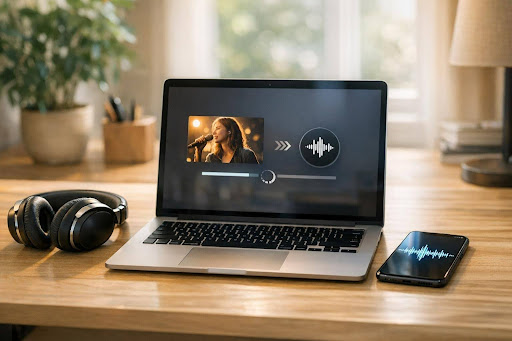

Here’s the insight most guides miss: downloading a YouTube video as an MP3 is the easiest part of the process. The real value—and the real work—begins once that audio file is on your hard drive. For professionals saving webinars, lectures, or interviews, the audio is just raw material. The finished product is the insight you can act on.
I manage a fully remote team, and we treat YouTube like a free, on-demand university. A 90-minute industry panel isn’t just background noise; it’s a source of competitor intelligence, talking points for our next sales call, or a spark for a new content series. But no one has 90 minutes to re-listen.
This guide covers the how-to of getting audio off YouTube, but it’s really about the what-next. I’ll share the methods my team uses, from simple browser tools to command-line scripts for bulk work. Then, I’ll show you the workflow that turns a downloaded MP3 into a structured asset: a searchable transcript, a one-paragraph summary, and a list of actionable takeaways.
Why “YouTube to MP3” is a Starting Line, Not the Finish
The search term “YouTube to MP3” frames the goal as a file conversion. In my experience, that’s a tactical step in a larger strategic process. The underlying need is almost always knowledge capture and synthesis.
Think about what you’re actually saving:
* A lecture or tutorial: You want the key concepts and steps, not the full 60-minute runtime.
* An industry webinar: You need the speaker’s main arguments and any cited data.
* A podcast or interview: You’re looking for quotable insights or a unique perspective to reference.
An MP3 file alone is inert. It’s not searchable. You can’t skim it. It requires linear time to consume. The professional workflow transforms this passive audio into an active resource. It’s the difference between storing a book on a shelf and having a detailed index, chapter summaries, and highlighted passages for quick reference.
Part 1: How to Get the Audio File (The Tactical Playbook)
Let’s get the mechanics out of the way. These are the methods I’ve tested and trust, categorized by your comfort level and need for scale.
Method 1: The Simple Browser Tool (For One-Offs)
When I need a single lecture fast, I use a dedicated browser extension or a reputable web service. This is the “right-click, save-as” for audio.
- 4K Video Downloader: My go-to desktop app. It’s clean, reliable, and lets you paste any YouTube URL to download just the audio track as an MP3, M4A, or OGG file. The free version handles most needs.
- Browser Extensions: Extensions like “Video Downloader Professional” for Chrome or “Video DownloadHelper” for Firefox add a download button directly below YouTube videos. Click, select “audio,” and you’re done.
- Online Converters: Websites like OnlineVideoConverter or YTMP3 offer a barebones paste-and-convert interface. Use with caution: free web tools often come with intrusive ads, bandwidth limits, and privacy concerns. I only use these in a pinch on a clean device.
The Professional Caveat: While easy, these methods are manual and don’t scale. Downloading 20 episodes of a podcast series this way is a tedious afternoon.
Method 2: The Command-Line Power Tool (For Automation & Scale)
If you regularly archive content from a specific channel or playlist, automation is non-negotiable. This is where yt-dlp (a more active fork of the legendary youtube-dl) becomes indispensable.
What is yt-dlp? It’s a free, open-source command-line program that interacts directly with YouTube’s (and many other sites’) servers to download content. It’s the engine behind many of the GUI tools mentioned above.
Here’s a basic workflow I use:
1. Install it (via Python’s pip package manager: pip install yt-dlp).
2. Navigate to your desired folder in Terminal (Mac/Linux) or Command Prompt/PowerShell (Windows).
3. Run a command. To download just the audio of a single video as an MP3:
yt-dlp -x –audio-format mp3 [YouTube_URL]
To download an entire playlist:
yt-dlp -x –audio-format mp3 [Playlist_URL]
You can set it to run on a schedule, archive channels, or extract subtitles. The learning curve is steeper, but the payoff is a fully automated, scalable pipeline for knowledge harvesting.
Method 3: The All-in-One Media Toolkit
Software like VLC Media Player or Audacity can also handle this task, though it’s more of a workaround.
* VLC: Open VLC, go to Media > Open Network Stream, paste the YouTube URL. Then, use Tools > Codec Information to find the direct audio stream URL and record it.
* Audacity: Requires the “Audacity YouTube Downloader” plugin. It imports audio directly into the editor for trimming before export.
I use these methods less for downloading and more when I need to immediately edit or trim a clip from a live stream or video.
| Method | Best For | Pros | Cons | Skill Level |
| Browser Tools & Web Apps | One-off downloads, simplicity. | Fast, no installation, intuitive. | Ads, privacy concerns, doesn’t scale. | Beginner |
| Desktop Apps (e.g., 4K Video Downloader) | Reliable, repeat downloads. | Clean interface, batch lists, trustworthy. | Can cost for pro features, still manual. | Beginner-Intermediate |
| Command-Line (yt-dlp) | Automation, playlists, large batches. | Free, powerful, scriptable, integrates into pipelines. | Requires comfort with terminal/command line. | Advanced |
| Media Software Workarounds | Immediate editing post-download. | Leverages tools you may already have. | Cumbersome for pure download purposes. | Intermediate |
- Use a Dedicated Transcription ServiceServices like Rev or Temi offer human or AI transcription for a per-minute fee. Upload your MP3, get a text file back. Accuracy is high (especially with human transcribers), but the costs add up with frequent use. I reserve this for high-stakes content, such as legal discussions or client interviews.
- Use an AI Meeting/Media PlatformThis is my team’s standard operating procedure for most professional content. Platforms like Otter.ai, Fireflies.ai, or Fathom aren’t just for Zoom calls. They allow you to upload audio or video files (like your downloaded MP3) and generate a transcript automatically.
For example, you can take a downloaded webinar MP3, upload it to Otter, and in minutes have a time-stamped, speaker-separated transcript. Some, like Notta, even allow you to paste a YouTube URL directly to convert YouTube to MP3 and transcribe it in one step, which streamlines the process. The key is choosing a tool whose accuracy, pricing (many have free tiers), and output format fit your volume.
My Framework: The “5-1-1”
For every significant piece of content, I aim to produce:
* 5 Key Takeaways: Bullet points of the core ideas.
* 1 Executive Summary: A 100-word overview for sharing with my team or adding to my notes app.
* 1 Action Item: What one thing will I do, research, or change based on this? If there isn’t one, the content was likely entertainment, not professional development.
Step 3: Integrate into Your Knowledge System
A summary in a random Google Doc is a digital black hole. The final, key step is to place these insights into a system you actually use.
- Notetaking Apps: I create a note in Obsidian or Notion titled with the video name. I paste the summary, key takeaways, and a link to both the original YouTube video and the local MP3 file. I tag it with relevant topics (e.g., #SEO, #Leadership).
- Bookmark Managers: In Raindrop.io or Memex, I bookmark the original video and use the annotation feature to paste my generated summary and takeaways, making them searchable later.
- Team Wikis: For content relevant to the whole team, the summary and takeaways get added to a dedicated channel in Slack or a page in our Confluence wiki.
- Personal Use & Fair Dealing/Fair Use: Downloading a lecture for your own educational use, to create a transcript and notes you don’t redistribute, often falls under “fair dealing” (common in many jurisdictions) or “fair use” (in the U.S.) for purposes of criticism. The Bright Line: You cross an ethical and legal line if you: Redistribute the audio file or transcript publicly. Monetize the downloaded content in any way. Circumvent the creator’s intended access (e.g., bypassing a paywall).
- Best Practice: When in doubt, support the creator. If a channel provides transcripts or summaries for purchase, buy them. If you find immense value in a creator’s work, use your downloaded notes to create a list of points you loved, and share that in a public review. The amateur downloads an MP3 and hopes to “listen to it later.” The professional builds a lightweight, repeatable pipeline.
Is it legal to download audio from YouTube?
YouTube’s Terms of Service prohibit it without permission. However, for personal, educational use under fair use/fair dealing principles (like creating a private transcript and notes), it is generally considered low-risk. Redistribution or commercial use is illegal.
What’s the best free way to download a YouTube playlist as MP3s?
The most powerful free method is using the open-source command-line tool yt-dlp. With a single command (yt-dlp -x –audio-format mp3 [PLAYLIST_URL]), you can download an entire playlist’s audio reliably and without ads.
Can AI transcribe a YouTube video without downloading it first?
Yes. Several AI meeting platforms can process a YouTube URL directly. For instance, Otter.ai allows URL import in its web app, and Notta has a dedicated YouTube transcription feature. This skips the MP3 step, creating a transcript and often a summary in one action.
How accurate are AI-generated transcripts from YouTube videos?
For clear audio with a single speaker, modern AI services like Otter, Fireflies, and Fathom achieve 85.
95% accuracy, which is sufficient for creating searchable notes and summaries. Accuracy drops with heavy accents, poor audio quality, or multiple crosstalk
g speakers.
What should I do with the MP3 file after I create a transcript and summary?
Store it as a backup in an organized folder (e.g., ~/Audio/Webinars/2024-10), but consider the transcript and summary your primary assets. You can reference the MP3 if you need to verify tone or a specific nuance, but the text-based outputs will be what you use 99% of the time.

Raghav Sharma is a content writer and media researcher at Newsdata.io, specializing in news industry analysis, media literacy, and the evolving landscape of digital journalism. With a background in English Literature and Journalism, along with a focus on fact-based reporting standards, Raghav covers topics including news API technology, editorial bias evaluation, and responsible information consumption. Raghav’s work has covered media trends across categories, including healthcare news, international journalism, and API-driven publishing. You can connect with him on LinkedIn or explore more of his writing on the Newsdata.io blog.